
Standard Approvals are project-specific approval workflows, allowing customization on a per-project basis
To setup site-wide approvals, reference the "How do I create a Global Approval?" article.
Helpful Hint: Managing approvals at the site level is best practice, to ensure consistent workflows across projects & easy maintenance for administrators as your organization's processes change and grow.
Creating a Standard Approval
- From inside the project, click the red gear icon on the right-hand side of the page to open Project Admin Settings.

Helpful Hint: If you don't see the red gear icon, then you do not have access to make this change. Please check with your Site Admin to get the changes made that you need.
- Select the app that you wish to create an approval for (ex. Contract / PCO / Change Order)
Helpful Hint: Apps like Budget, and Documents will require a few more clicks to navigate into the specific thread / area where the approval workflow is defined.
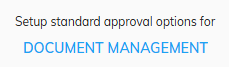
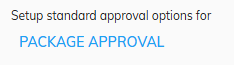
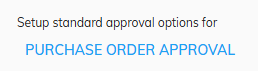
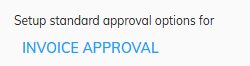
- Click the link underneath "Setup standard approval options for"
- Documents: Document Management
- Budgets: Classic Approval, Column D Approval, Column E Approval, Column F Approval, Budget Transfer Approval

- Bid Packages: Package Approval
- Contract / PCO / Change Order: Contract Approval, PCO Approval, Change Order Approval

- Purchase Order: Purchase Order Approval
- Invoices / Pay Apps: Invoice Approval
- Documents: Document Management
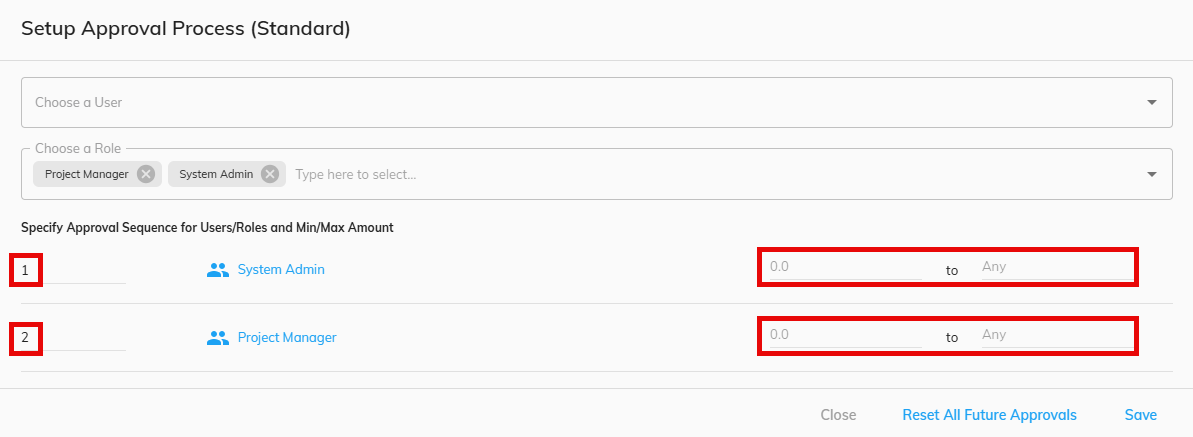
- Select the User(s) and/or Role(s) that need to be involved in the approval workflow
- Use the left-hand side to enter the numbering order in which the approvers need to flow in
- For Cost-tracking items, use the _____ to _____ fields to designate specific dollar amounts, when applicable, as parameters for a specific party to be involved in the approval workflow
Helpful Hint: If you don't see a name, or role, listed in the drop-down options, double-check that (a) they are a user within the project, or (b) the role has appropriate access rights to the module where the approval is being created.
- Click Save