
Global Approvals are site-wide approval workflows that are applied across the Projectmates site and accessible from every active project in the system.
Creating a Global Approval
- Click the red slider icon on the right-hand side of the page to open Site Admin Settings.

Helpful Hint: If you don't see the red slider icon, then you do not have access to make this change. Please check with your Site Admin to get the changes made that you need.
- Under "Custom Content", click Global Approvals
- Click + Global Approval
Helpful Hint: To confirm that the user roles you need are available to select within an approval workflow, click on Global Roles first. If the role that you need is not listed, create it - using the exact name of the role as it exists in your Master Project Template.
- Select the App (ex. Bid Package, Contract, Invoice, etc.)
- Enter a Display Name (ex. Construction)
- Enter a Description (ex. Contracts)
- Click Save
- On the main Global Approvals log page, click Setup Approvals on the right-hand side of the new approval just created.

- Select the User(s) and/or Role(s) that need to be involved in the approval workflow
- Use the left-hand side to enter the numbering order in which the approvers need to flow in
- For Cost-tracking items, use the _____ to _____ fields to designate specific dollar amounts, when applicable, as parameters for a specific party to be involved in the approval workflow
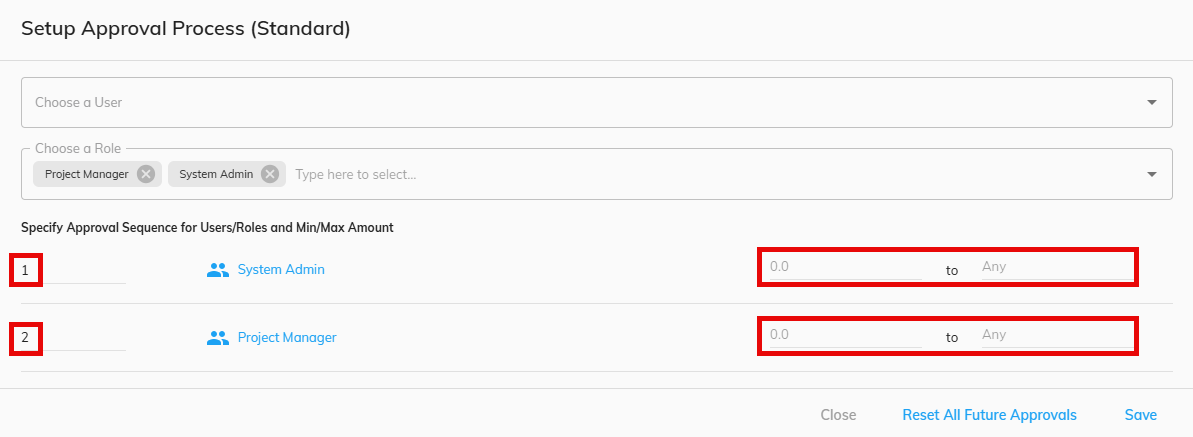
- Click Save
Additional Information:
If a Global Approval that has been created is not displaying as an option within a given project, reference the "Why are Global Approvals not displaying in the approval drop-down options?" to find out what may be impacting this behavior.
To setup project-specific approvals, reference the "How do I create a Standard Approval within a project?" article.