
Projectmates has an option to integrate with DocuSign to allow documents to be signed electronically and stored directly in the system. This article explains how to start the DocuSign signing process in both the Cost Tracking and Documents modules. While the process is similar, there are some slight differences in how the workflow is triggered.
Helpful Hint: This integration is an add-on that incurs an additional cost. Reach out to your Client Relationship Manager for information on pricing if this is not currently included in your contract.
Setting Up the DocuSign Integration
You can initiate the DocuSign process from (2) different modules within Projectmates:
Document Management:
Use the DocuSign option from the dropdown menu (three dots icon) next to a document.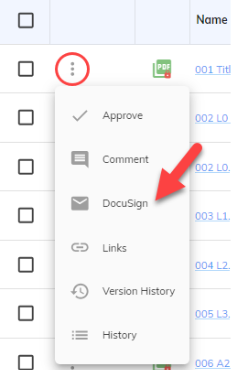
Cost Tracking (ex. Contract, Change Order, Purchase Order, and Invoice):
Use the DocuSign tab within the item to start the process once the document is ready for signature.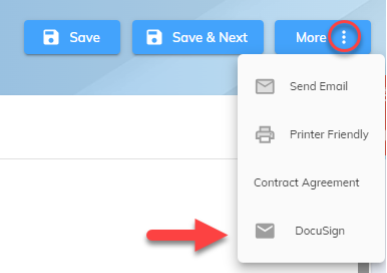
Helpful Hint: The first time you select this integration option in Projectmates, you’ll be prompted to log in and authenticate your DocuSign account. Once connected, your Projectmates login will remain linked to this DocuSign account for future requests.
Starting a DocuSign Flow in Cost Tracking
You can start the signing process for cost-related items such as Contracts, Change Orders , Purchase Orders, and Invoices.
Select the Signer(s)
Fill out the required fields identified with the red asterisk. You can add additional signers using the + button (users or non-users can be added).Upload the Document
Upload the file that requires signatures into the relevant cost tracking item.Approve the Cost Item
The cost tracking item must be approved before you can begin the signing process.Start the Signing Flow
Once approved, a Start Sign Flow (DocuSign) button will appear under the DocuSign tab for that cost item. Click this to initiate the workflow.Prepare in DocuSign
DocuSign will open in a new window. You can place signature fields and customize the document.Send for Signature
Once ready, click Send in DocuSign. Each signer will receive an email invitation to review and sign the document.
Starting a DocuSign Flow in Documents
For files stored in the Documents module, the process is slightly different.
Select the File
Navigate to the Documents module and select the PDF you need signed, and then click the kebab icon to open the DocuSign setup.Assign a Signer
Add at least one signer. You can include Projectmates users or manually enter external email addresses.Start the Signing Flow
Once a signer has been assigned, the Start Sign Flow button will appear.Prepare and Send in DocuSign
A new DocuSign window will open where you can adjust fields as needed.
Click Send when ready.
After Sending
Each signee receives a DocuSign email to complete their part.
Once all signers have finished, the document is considered complete.
Projectmates will display:
The original document
The signed version
A DocuSign certificate of completion