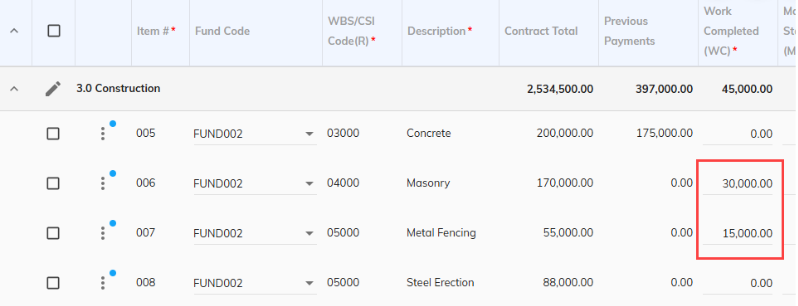
Processing a deductive change order in Projectmates involves two parts: creating a change order to lower the overall contract total and cancelling out the negative line items in the following invoice. Although the second part is optional, it’s recommended to make billing more streamlined for future invoices.
Create the change order
- Go through all of the initial steps in creating a change order and filling out the General tab.
- In the Items tab of the change order, enter in the negative amounts for your deduction. All the same rules of creating a regular change order also apply to a deductive change order.
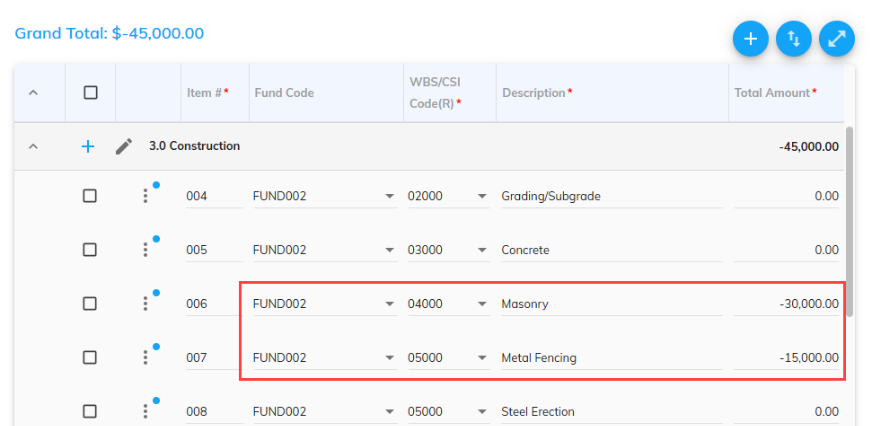
- Dollar amounts can be deducted from existing contract line items.
- A new deductive line item can be manually created.
- A previous deductive PCO that was approved can be linked to this CO.
- On the Attachments tab, upload any supporting documentation as needed.
- On the Approval tab, select the applicable approval workflow, and click Start Approval.
Cancel out the negative lines in the invoice
As a general rule, anything done in a change order will always introduce new line items in subsequent invoices/pay applications. This applies to deductive change orders as well. For example, even if you were to create a deductive change order that exclusively reduced the dollar amounts for original contract line items, the deduction will still be reflected as new line items in subsequent invoices.
If a deductive change order was meant to reduce the amount that can be billed against a line from the original contract, then it’s recommended to “cancel” out these new line items in the following invoice.
- Create an invoice against the contract. This cancelling out can be done in its own dedicated $0 invoice or in tandem with an actual invoice being billed.
- On the Items tab, completely bill out the negative lines from your deductive change order.
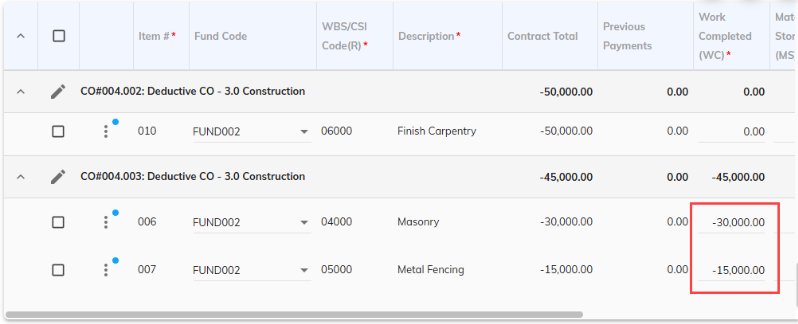
- Bill the opposite amount in their corresponding contract lines. The values should cancel each other out.