As you begin incorporating filters into your ad hoc reports, you may start to wonder how you can get even more specific with your filter criteria. Luckily, Projectmates users can manage the filter logic(s) directly in the ad hoc report builder. This article will cover the filter components, how to edit them, and best practices.
Operators
There are two operators that give you a lot more control over how the filter streamlines your data.
- And - The default logic applied to a report with multiple filters relies on the operator "and". This operator means that if the filter before and the filter after are both true, then the data will be included in the report.
- Or - The operator can be converted to "or", this means that if either filter, before or after, is true, then it will be included in the report.
Parentheses
By default, parenthesis are not included in the filter logic, but when applied, you can use parenthesis to group filters in different ways.
For example, to view menu selections of pizza, or hamburgers and fries, you would write: Pizza or (Hamburgers and Fries).
Below are a few useful examples
- 1 and 2
- 1 or 2
- 1 and (2 or 3)
- (1 and 2) or 3
- 1 and 2 and 3
- 1 or 2 or 3
How To
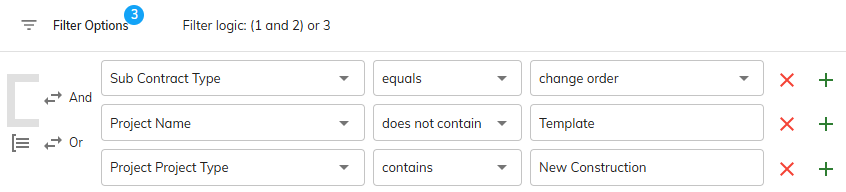
When it comes to editing the filter breakdown, you will need to have your filters applied first. Once your filters are in place, you will be able to use the icons located to the left of the filters to edit the filter logic.
The operator/parenthesis editor is located between each filter. When adjusted, the parenthesis or operator will apply to the two filters bordering it.
- Operators - Click on the dual arrow icon to convert "and" to "or" and vice versa.

- Parenthesis - Click on the parenthesis icon to add or remove parenthesis.